
Create your first automation (step by step)
Quick answer
Go to Automations → New automation. Choose “Comment on a post or reel”, pick the reel, add a keyword like GUIDE, choose what they get (for example a link button), and click Save. Anyone who comments the keyword gets your DM within seconds.
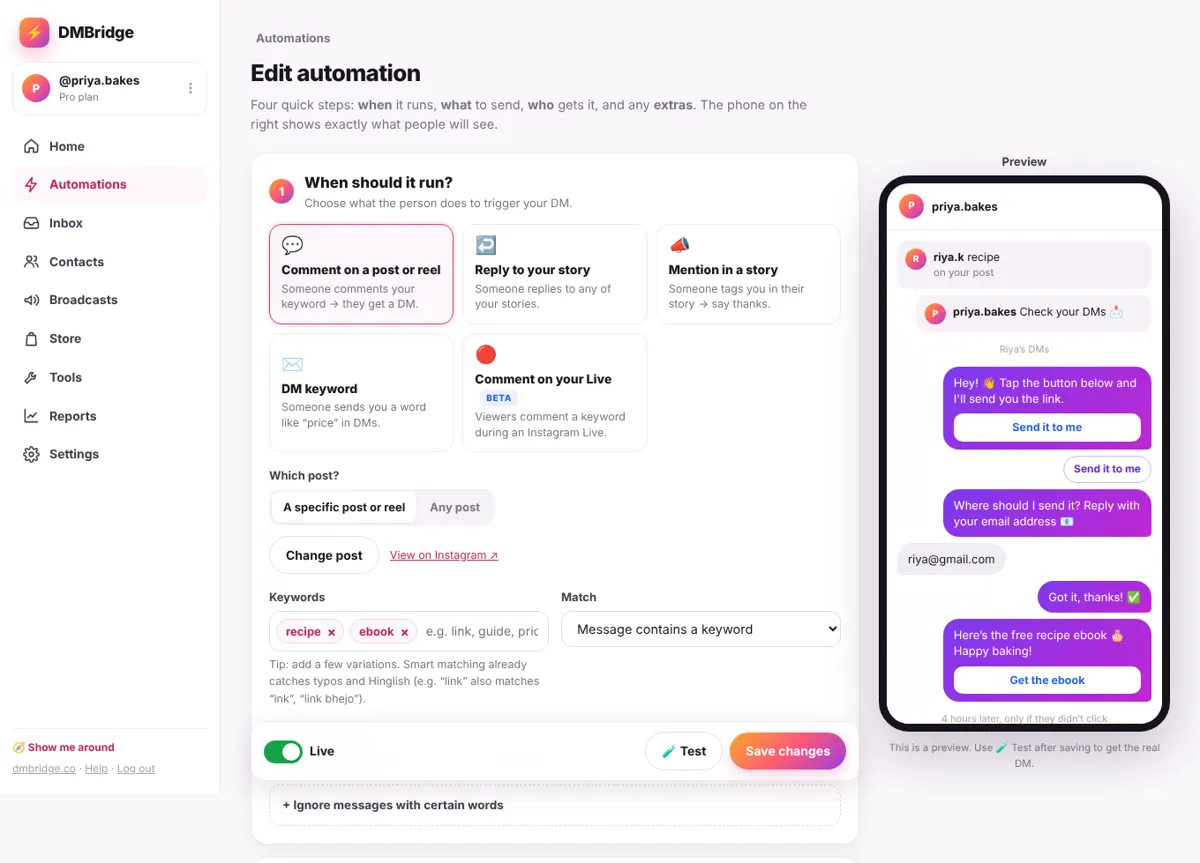
- Open Automations and click New automation — or Start from a template.
- When should it run? Choose Comment on a post or reel, then Choose a post (or Any post for a keyword you use everywhere).
- Keywords: type the word people should comment, e.g.
guide. Smart matching also catches typos, emoji and Hinglish. - What should they get? Pick Links, write a short message and add your button (e.g. “Get the guide” → your URL).
- Who can get it? Everyone, or Followers only PRO.
- Give it a name, keep Live on and click Save changes.
Prefer a guided version?
Click 🧭 Show me around on your dashboard. We’ll walk you through every setting and then test it with you live.
Related articles
🚀 Getting started
What is DMBridge?How to connect your Instagram accountCreate your first automation (step by step)The “Show me around” guided tourHow to test an automationFree vs Pro: what’s includedStill stuck? Email [email protected] — we usually reply within a day. · All help articles
Frequently asked questions
How fast are DMs sent?
Usually within a few seconds of the comment.
Can I edit it later?
Yes. Changes apply instantly to new comments.
Try DMBridge free
Connect Instagram in 30 seconds. 100 auto-DMs a month free — no card needed.
Continue with Instagram